23 AI Cleanup: GraXpert in the Browser
Once STUDIO has produced a master (Chapter 20), three AI operations stand between it and the creative editing pass: removing the light pollution gradient, reducing noise, and sharpening. Polaris performs all three with the trained models from GraXpert, the free AI-based astro image correction tool (The GraXpert Team, n.d.), and it runs them in an unusual place: your browser. The server hosts the model files; the browser fetches them once, caches them, and does all the math locally through ONNX Runtime1. Nothing needs to be installed on the host, the host’s CPU stays free for capture and guiding, and the same AI works from a laptop, an Android tablet, or an iPhone (iOS 16.4 or later).
There is also a second, server-side path: if the GraXpert program itself is installed on the host, Polaris can drive its command line instead. That path is covered later in this chapter; the browser path is the default and the one most people should use.
23.1 The three operations
Background extraction (BGE) removes the smooth brightness gradients that light pollution, sky glow, and vignetting (corner darkening from the optics) paint across a frame. It models the background and subtracts it, leaving the target on a flat, neutral sky. This is the single most transformative step for anyone imaging under suburban skies.
Denoise is AI noise reduction, meant for the final integrated master, where it smooths the residual grain without erasing faint structure.
Deconvolution sharpens a master by mathematically undoing the blur that the atmosphere and the optics imposed, a problem classically solved by the iterative Richardson-Lucy algorithm (Richardson 1972; Lucy 1974); GraXpert’s version is a neural network trained for the same job. It comes in two flavours, Objects (sharpens broad nebula structure) and Stars (tightens stellar profiles without touching the nebula), and you run one or the other, not both.
Denoise and deconvolution belong on integrated masters only: run on individual light frames they degrade the signal-to-noise ratio of the eventual stack. BGE is the exception; running it on every light before stacking is actively good, and Polaris automates exactly that (see the AUTORUN integration below).
23.2 Where the math runs
The browser picks the fastest engine it supports:
| Backend | Browser | Notes |
|---|---|---|
| WebGPU | Chrome/Edge 113+, Safari 16.4+ (macOS/iOS), Firefox 121+ behind a flag | Fast; uses the device’s graphics card. Default when supported. |
| WASM SIMD | All modern browsers | CPU-only fallback, roughly 5 to 10 times slower, but works everywhere. |
WebGPU is the browser’s modern interface for running general-purpose math on the graphics card; WASM is WebAssembly (WebAssembly Community Group, n.d.), a technology that runs near-native-speed code on the CPU inside the browser, and SIMD is a CPU feature that processes several numbers per instruction. The runtime tries WebGPU first, then WASM SIMD, then plain WASM, automatically; the one exception is iOS, where Polaris makes its own per-model choice for memory reasons (see the iPhone section below). To check which backend a run actually used, open the browser’s developer console and read OnnxRegistry.__lastBackend.
23.3 Getting the models
Polaris does not ship the GraXpert model files: their licence is CC BY-NC-SA 4.0 (free for non-commercial use, with attribution, share-alike on derivatives), which is incompatible with bundling them inside an MPL-licensed application. You provide them once, on the host, and every browser on your network gets them from there.
The five files follow GraXpert’s own directory layout. Clone the GraXpert repository (the models ship inside under models/), or copy the five model.onnx files into a folder of your own shaped like this:
{your-root}/
  bge-ai-models/1.0.1/model.onnx
  denoise-ai-models/2.0.0/model.onnx
  denoise-ai-models/3.0.2/model.onnx
  deconvolution-stars-ai-models/1.0.0/model.onnx
  deconvolution-object-ai-models/1.0.1/model.onnx
Then point Polaris at the folder. Three placements work, checked in priority order (profile setting first, then /home/polaris/models on Linux, then the bundled folder):
Pi and
.debinstalls: drop the layout above into/home/polaris/models/(the package install creates this directory, owned by the Polaris service user). Zero configuration; the server checks it on every Linux start. From another machine:rsync -avh ai-models bge-ai-models polaris@<hostname>.local:models/Profile setting (handy when the models live on an external SSD): Settings → AI inference (ONNX) → Models path, paste the absolute path, tab out.
Bundled fallback (any platform): the same layout inside the application’s own
wwwroot/graxpert/models/folder.
The first scan computes a SHA-256 fingerprint of each file (a checksum used to verify downloads), about 5 seconds total on an SSD. After adding or changing models, trigger a rescan: restart Polaris, click Re-detect in the Settings AI panel, or POST /api/onnx/rescan.
Denoise ships in two versions and the Onnx:DefaultDenoiseVersion setting picks the default: v2 (284 MB) is the standard choice, v3 (456 MB) is sharper but heavier, useful on desktops and tight on iOS.
Downloading models from the catalog
Devices and OS images that ship without bundled models, and any setup where you would rather not copy files by hand, can pull ready-made .onnx files from inside the app:
- Settings → AI inference (ONNX) → Download models, click Refresh catalog. By default this lists the models hosted in the public Polaris Astro Controller model repository on SourceForge; no configuration needed.
- Click Download next to a model. It streams into the host’s writable models directory (resolved through the same priority order as above) and the registry rescans automatically, no restart needed. A progress bar tracks the transfer, and one download runs at a time.
The same panel serves the star-removal models used in Chapter 24. Advanced users can point the catalog at their own host instead: expand Advanced, use a custom model bucket and enter a base URL that serves a models-index.json plus the {base}/{family}-ai-models/{version}/model.onnx layout.2
23.4 Running from the FILES tab
- Open FILES (Chapter 19) and select one or more FITS files (FITS is the standard image file format of astronomy).
- Click BGE, Denoise, or Decon in the toolbar.
- The modal opens with Run in browser ticked (the default whenever an ONNX model is available and the prefer-CLI setting is off). Each modal exposes the operation’s tuning: smoothing and correction for BGE, model version and strength for Denoise, method (Objects or Stars), strength, and FWHM3 for Decon.
- Click Start.
The first run of each model downloads its weights from the server (roughly 200 to 500 MB depending on the operation) and caches them in IndexedDB, the browser’s built-in local database, so later runs start instantly. On a laptop with WebGPU, BGE on a 24-megapixel master takes about 30 seconds; deconvolution, the heaviest operation, takes 3 to 5 minutes. Each input gains a sibling file next to the source: {stem}_bge.fits, {stem}_denoise.fits, or {stem}_decon.fits. The original is never modified.
When a run finishes, a before/after comparator opens so you can judge the result before moving on.
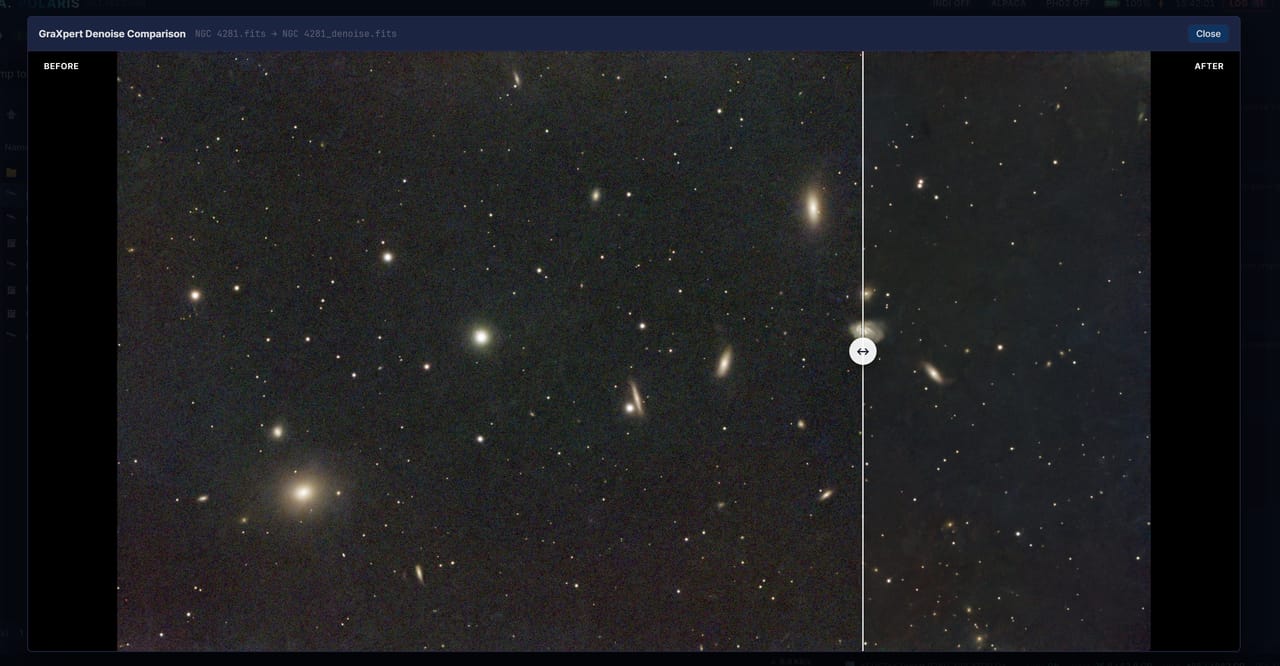
NGC 4281.fits on the left of the draggable divider, the NGC 4281_denoise.fits result on the right.
23.5 Running from the EDITOR
Open any FITS in the EDITOR (Chapter 25) and scroll the right panel to the AI (GraXpert) section. Its three buttons, Background, Denoise, and Deconvolve, each process the editor’s current source FITS, save a sibling next to it, and reload the editor with the sibling as the new source, preserving your Light, Color, and Effects slider state across the swap. The original source is never modified, and Ctrl+Z after an AI swap reverts the swap in the editor (the sibling file stays on disk).
23.6 The first-use licence prompt
The very first time you trigger any AI operation in a given browser, a modal asks you to acknowledge the CC BY-NC-SA 4.0 licence of the GraXpert model weights: non-commercial use, attribution, share-alike on derivatives. Polaris itself is MPL 2.0 and does not redistribute the model files. Click I agree; consent is cached in the browser and in the server profile, so other browsers on the same profile are not re-prompted.
23.7 Memory and the browser cache
Each model loaded into the runtime occupies roughly 250 to 500 MB of memory in the full-precision (FP32) form. The IndexedDB cache persists across sessions and totals about 1.5 GB once all five models have been used (more if reduced-precision siblings are cached too); Clear cache in the Settings AI panel drops it. Bandwidth per processed file is roughly 50 to 200 MB, since the raw 16-bit pixels make a round trip between host and browser.
23.8 iPhones and iPads: the FP16 workflow
iOS Safari gives each browser tab a memory budget of roughly 1 GB on an iPhone (looser on an iPad), and the full-precision GraXpert models simply do not fit: the tab dies silently, a “crash to home screen” with no error dialog. Polaris ships two mitigations that together let all four operations run on the iPhone’s graphics card. Verified working as of May 2026: an iPhone 17 Pro Max runs all four operations on WebGPU with the reduced-precision variants in under about 2 minutes for a typical master.
First, Polaris picks the engine per model, by file size. BGE runs in a single pass and is gentle on graphics memory, but the denoise models process the image as a grid of small tiles (hundreds of separate GPU calls), and on iOS every buffer those calls allocate counts against the tab’s budget:
| Model size | iOS backend | Why |
|---|---|---|
| 200 MB or less | WebGPU | Fits comfortably; roughly 10 times faster than the CPU |
| Over 200 MB | WASM (CPU) | Avoids the out-of-memory crash |
The decision is logged to the browser console on each load.4
Second, generate half-precision variants of the models. FP16 (16-bit floating point, half the bytes of the standard FP32 with no visible quality loss on astrophotography frames) halves every model. On a machine with Python:
pip install onnx onnxruntime onnxconverter-common
python scripts/quantize_onnx_models.py --fp16
With no --only flag, all five FP32 models get FP16 siblings (--only denoise or --only decon restricts the family). The script walks the models folder and writes each variant into a sibling version directory with a -fp16 suffix, for example denoise-ai-models/2.0.0-fp16/model.onnx (about 142 MB next to the 284 MB original; BGE drops from 208 to about 104 MB, each deconvolution model from 267 to about 133 MB, denoise v3 from 456 to about 228 MB). Then trigger a rescan.
On iOS the pipeline then helps itself, per operation: BGE and Decon silently substitute the -fp16 variant when it exists, and the Denoise AI model dropdown pre-selects the lightest available variant. Denoise keeps an explicit dropdown because v2 versus v3 is a real quality trade-off that deserves a user choice; FP16 versus FP32 is a platform detail, so it is automatic. On desktop the auto-pick stays out of the way: FP32 remains selected because desktop WebGPU runs it faster.
The same script accepts --int8, which quarters the models, but INT8 does not work in the browser: the bundled ONNX Runtime Web build lacks the integer-math operators those models need, and loading one fails with “no backend found”. Stick to FP16 on iOS and FP32 elsewhere.5
23.9 The CLI fallback on the host
If your browser cannot run the models (very old, no WebGPU and no SIMD, or out of memory on a huge master), or you simply prefer the work to happen on the host, Polaris can drive the GraXpert program itself through its command line (CLI, the scriptable text-mode way of running a program). BGE works on all GraXpert versions; deconvolution and denoising need GraXpert v3.0 or later.
Install GraXpert on the host:
Linux: download the binary from graxpert.com or the GitHub releases and extract it. Polaris checks the common locations:
/usr/bin/graxpert /usr/local/bin/graxpert /opt/graxpert/graxpert /opt/GraXpert/GraXpert ~/GraXpert/GraXpert ~/.local/bin/graxpert $PATHWindows: run the official installer; the standard install under
C:\Program Files\GraXpert\is auto-detected, as are portable extractions under%LOCALAPPDATA%\Programs\GraXpert\.macOS: drag
GraXpert.appinto/Applications(orbrew install graxpert); Polaris finds the CLI inside the bundle.
GraXpert downloads its own model files the first time each operation runs, so make sure the host has internet access on that first run (or copy the models/ folder over manually if it is offline). Verify the detection under Settings → External tools: the GraXpert row should read Detected v3.0.2, BGE + Decon + Denoise (or BGE only for v2.x). If not, click Re-detect, and failing that paste the absolute path into Path override.
The same Settings panel holds the default tuning used whenever you run an operation without overriding it in the modal:
| Field | Default | Range | Meaning |
|---|---|---|---|
| BGE smoothing | 1.0 | 0 to 1 | Higher gives a smoother background model; 1.0 is fine for most deep-sky targets. |
| BGE correction | Subtraction | Subtraction / Division | Subtraction for linear data (default); Division for the uncommon case of a multiplicative gradient. |
| Decon strength | 0.5 | 0 to 1 | How aggressively to sharpen; 0.3 to 0.6 suits most masters. |
| Decon PSF size | 4.0 | 0.5 to 20 | Estimated star FWHM in pixels; eyeball it with the FITS viewer’s pixel readout. |
| Denoise strength | 0.5 | 0 to 1 | 0.3 is gentle, 0.7 and up is heavy; watch for plastic-looking stars. |
To make the CLI the default path, tick Prefer CLI subprocess by default under Settings → AI inference (ONNX) → Advanced; the FILES modal then opens with Run in browser unchecked. The choice remains editable per run, and both paths can coexist: install the CLI and keep the browser models, and the toggle picks per invocation.
Mind the host’s resources: the GraXpert AI models consume 3 to 8 GB of RAM per concurrent process, so the default concurrency is 1. Windows mini-PC owners with headroom can raise it in the FILES batch modal; Raspberry Pi 4 and 5 users should stay at 1, and consider closing PHD2 and the live preview during heavy runs. A 24-megapixel frame takes about 10 seconds for BGE on a desktop, about 30 seconds on a Pi 5; deconvolution and denoise are slower (about 30 and 60 seconds respectively on the same hardware).6
23.10 Automatic BGE during capture
The best time to remove the gradient is before stacking, on every light frame. In the AUTORUN tab (Chapter 14), expand End Events and tick Auto-extract gradient with GraXpert (per frame). Every saved light is then sent for BGE in the background; the next exposure starts immediately, and each _bge.fits sibling lands next to its captured light. Integrating those siblings instead of the raw lights produces a much cleaner master under light pollution.
Denoise and deconvolution deliberately do not auto-run: they degrade individual lights and belong on the integrated master only.
23.11 Combining BGE with a Siril stack
When both GraXpert and Siril, the free astro image-processing application (The Siril Team, n.d.), are detected on the host, the Siril run modal in STUDIO (Chapter 20) offers an Inject GraXpert BGE per-frame before stacking toggle. With it on, Polaris first runs BGE on each selected light (about 10 seconds per frame), then hands the cleaned _bge outputs, instead of the originals, to the Siril script. Slower than a plain run, noticeably cleaner under heavy light pollution.
23.12 NPU acceleration on small boards
Some single-board computers carry an NPU, a neural processing unit: a chip section built specifically to run AI models, faster and more efficiently than the CPU. On two families of board, Polaris can run BGE and denoise on the NPU on the host itself:
- Rockchip RK3588 / RK3588S (Orange Pi 5 Pro and similar), through Rockchip’s RKNPU2 runtime (Rockchip, n.d.).
- Qualcomm (Radxa Dragon Q6A / QCS6490 with the Hexagon V68 NPU), through the QAIRT runtime (Qualcomm AI Runtime, formerly QNN) (Qualcomm, n.d.).
Both paths are fully automatic: when a supported NPU, the matching runtime, and a converted model are all present, Polaris uses the NPU; otherwise it falls back to the GraXpert CLI or the in-browser path with no change in behaviour. The models run at half or 16-bit-integer precision tuned to match the browser pipeline, so the output is the same; only the speed changes. On an Orange Pi 5 Pro the NPU is about 5 times faster than the eight CPU cores (measured 91 versus 457 milliseconds per tile), and on the Radxa Dragon Q6A the denoise model reaches about 29.5 milliseconds per tile, roughly 150 times the CPU baseline. Either way the CPU stays free for live stacking.
| Operation | NPU | Notes |
|---|---|---|
| Background extraction | yes | single forward pass |
| Denoise | yes | tiled |
| Deconvolution | no | uses the GraXpert CLI (different model layout) |
Only FITS inputs take the NPU path; other formats use the CLI. The NPU path works even when the GraXpert CLI is not installed.
On the Rockchip boards you need the RKNPU kernel driver (the stock vendor Ubuntu images include it; check that a /dev/dri/renderD* node exists and read /sys/kernel/debug/rknpu/version) and the RKNPU2 runtime library librknnrt.so, which the Polaris .deb for linux-arm64 bundles. On the Qualcomm boards the check is the Hexagon bridge device /dev/fastrpc-cdsp, plus the QAIRT runtime bundled at /opt/polaris/qairt (override the location with the POLARIS_QAIRT_ROOT environment variable). Qualcomm’s NPU is integer-only on this chip: Polaris ships 16-bit-integer models by default (near-FP16 quality), with an 8-bit “turbo” variant that is about 4 times faster but visibly lower quality on denoise.
Confirm what Polaris detected from the GraXpert status endpoint (/api/graxpert/status, fields npuAvailable and npuDiagnostics). To force the NPU off, for example to benchmark against the CPU, set POLARIS_DISABLE_NPU=1 in the service environment (POLARIS_DISABLE_QNN=1 disables just the Qualcomm path).7
23.13 Troubleshooting
| Symptom | Cause / fix |
|---|---|
| No models listed in Settings | Path empty or wrong. Confirm the layout: ls <path>/bge-ai-models/1.0.1/model.onnx. |
| Hash column stuck on “(pending)” | The manifest never finished; open Settings → AI inference once and the rescan triggers it. |
OnnxRegistry is not defined in the console |
/js/onnx-pipelines.js failed to load; check the browser’s network log for a 404. |
| WebGPU not available | Browser too old or the feature flag is off. Everything still works on WASM SIMD, just slower. |
| Run hangs at “downloading 0%” | A proxy or the relay cached the model with the wrong content type. Clear cache and reload. |
| First save fails with a 500 error | The source directory is not writable by the Polaris service account. Check journalctl -u nina-polaris (Linux) or the Event Log (Windows). |
| iPhone tab dies silently during Denoise | Out of memory. Generate the FP16 variants (quantize_onnx_models.py --only denoise --fp16), rescan; the modal auto-selects them on iOS. |
| “No backend found” / “Failed to load model” toast | Usually an -int8 variant was selected; the bundled runtime cannot run it. Switch the dropdown to -fp16 or the plain FP32 model. |
| Inference suspiciously slow on iPhone | A model over 200 MB forced the CPU path. Switch to (or generate) the FP16 variant, and do not switch tabs mid-run; iOS pauses background tabs. |
23.14 Current limits
The v1 pipeline runs automatic BGE only; manual sample-point background extraction is planned for a later phase. Deconvolution tiles each file independently, with no mosaic-aware blending across panels. The EDITOR’s AI section works by reloading the editor with the AI output rather than editing the working buffer in place. And only the five official GraXpert models (plus the star-removal families of Chapter 24) are recognised by the model folder parser; custom user-trained models are not.
ONNX Runtime is the engine that executes ready-trained AI models; ONNX is the open file format those models are saved in. Polaris uses its browser build, onnxruntime-web (Microsoft and the ONNX Runtime contributors, n.d.).↩︎
The index is a JSON array with one entry per model:
dir(the on-disk family directory),version,bytes,label, an optionalsha256(downloads are rejected on mismatch), and an optional absoluteurloverride per entry. The bundled catalog file iswwwroot/graxpert/models-index.jsonand uses theurlfield to point each entry at its SourceForge download link. The endpoints behind the UI areGET /api/onnx/catalog,POST /api/onnx/downloadandGET /api/onnx/download-status.↩︎FWHM, full width at half maximum, is a measure of star size in pixels; it tells the deconvolution how much blur to undo. Read it off the frame statistics, or leave the default.↩︎
The 200 MB cut-off is the
IOS_WEBGPU_MAX_MODEL_BYTESconstant inonnx-pipelines.js; adjust it if a future iOS raises the per-tab WebGPU budget.↩︎For a 3000 by 2000 pixel RGB master with Denoise v2 on iOS, the memory peak is about 520 MB with FP32 and about 378 MB with FP16; the model weights dominate, which is why reducing model precision, not shrinking the image, is the real fix.↩︎
GraXpert is GPLv3; Polaris invokes it strictly as an external command, links no GraXpert code, and redistributes nothing. Outputs land next to each input with a
_bge,_decon, or_denoisesuffix. If a run completes with no output file, the installed GraXpert is likely too old to recognise the-cliflag; upgrade to v3.0 or later.↩︎The converted models and vendor runtimes are produced at build time and are not committed to the repository, because the models derive from GraXpert’s non-commercial weights and the runtimes are vendor binaries. Maintainers convert the ONNX models with
scripts/convert_rknn_models.py(needsrknn-toolkit2, Python 3.11, on x86_64 Linux) and fetch the Rockchip runtime withscripts/fetch-librknnrt.sh; the Qualcomm 16-bit context binaries are built through Qualcomm AI Hub and the runtime assembled withscripts/fetch-qairt.sh. Seedocs/user-guide/npu-acceleration.mdfor the exact recipes.↩︎